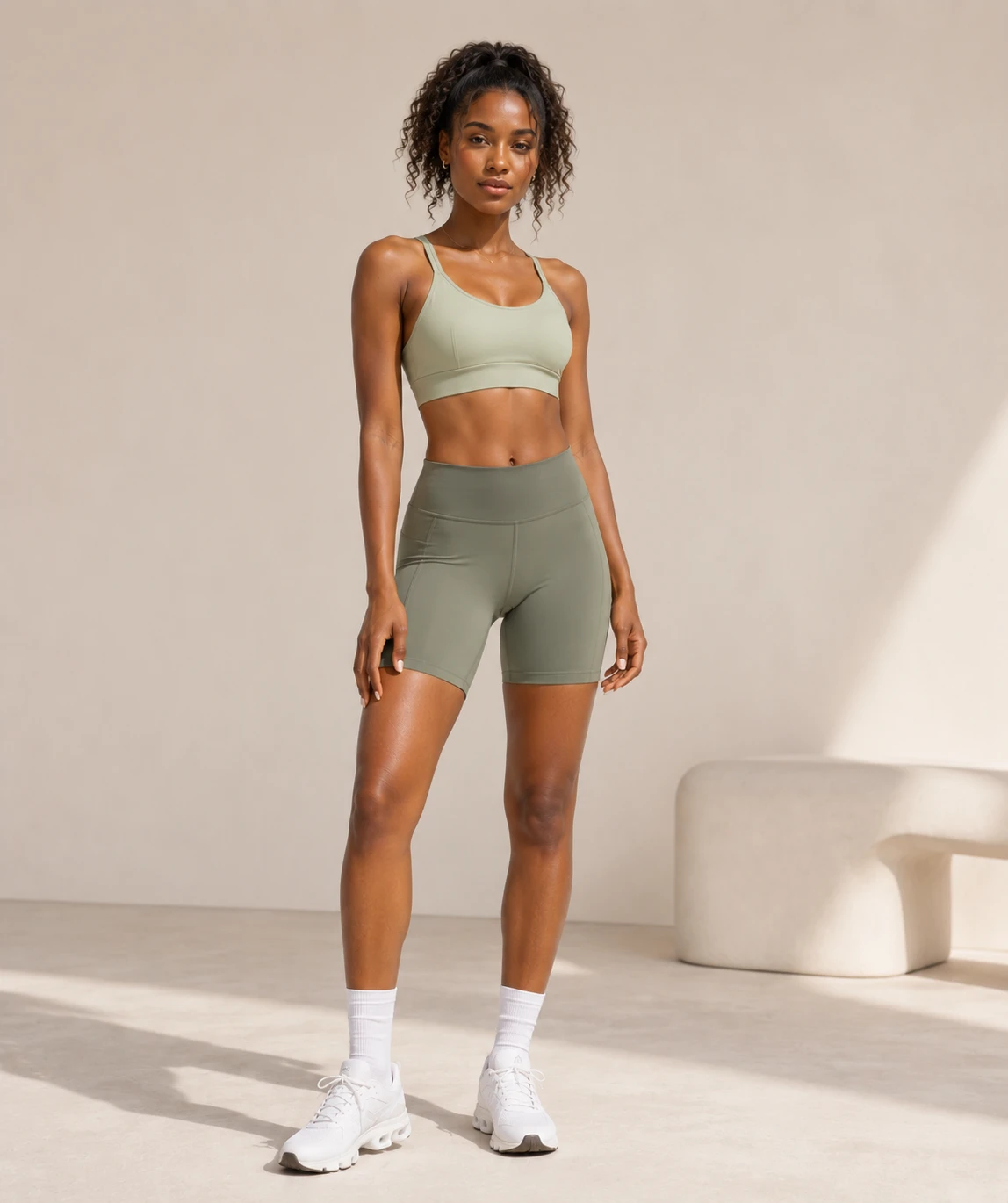
Remove faces from model photos while keeping every crop aligned.
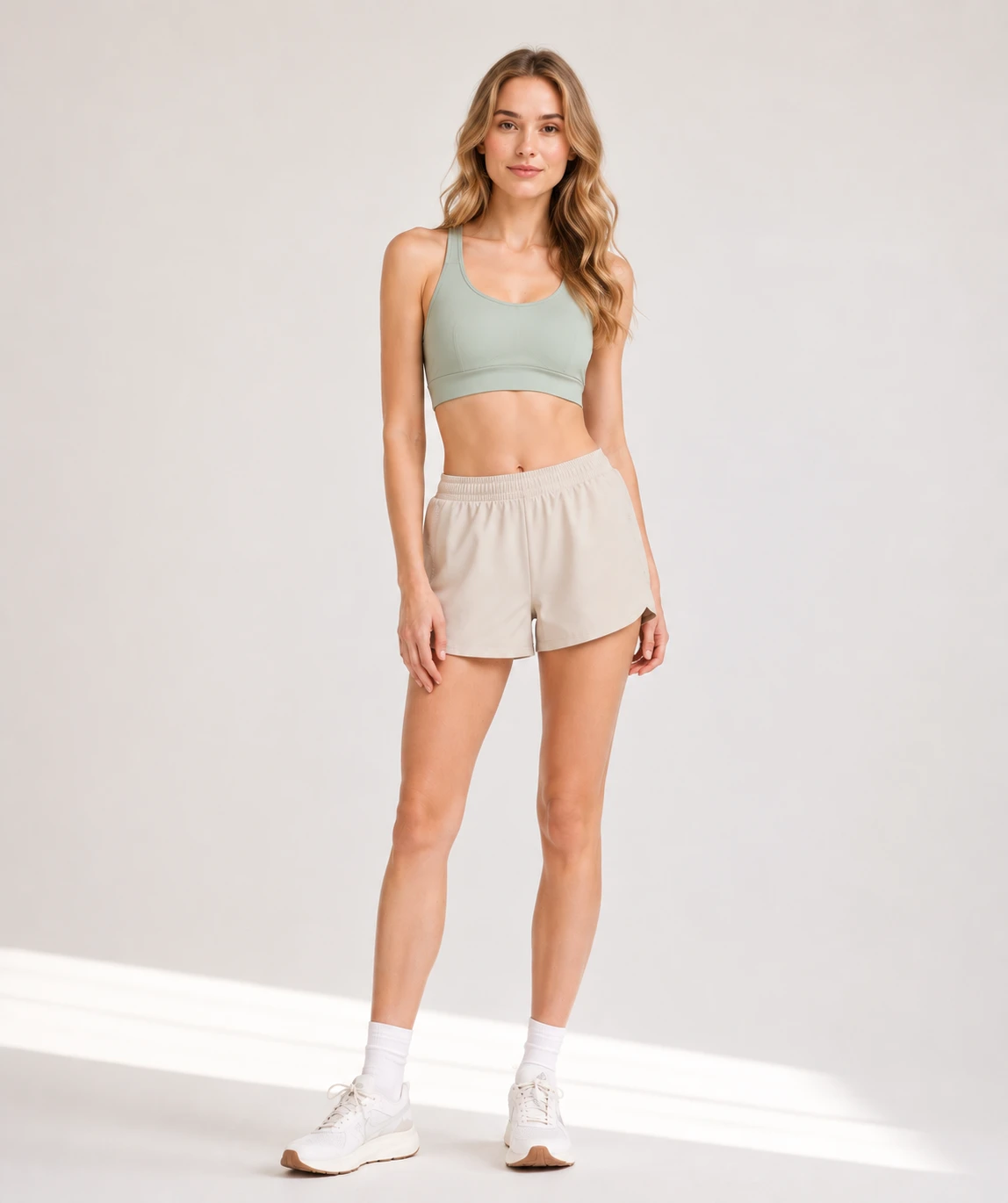
Headless Crop detects face and body landmarks, then crops from the selected reference line across the entire batch.
What it handles
Set the crop line, preview the frame.
Choose the marker, confirm the output frame, then apply the same crop setup to the batch.
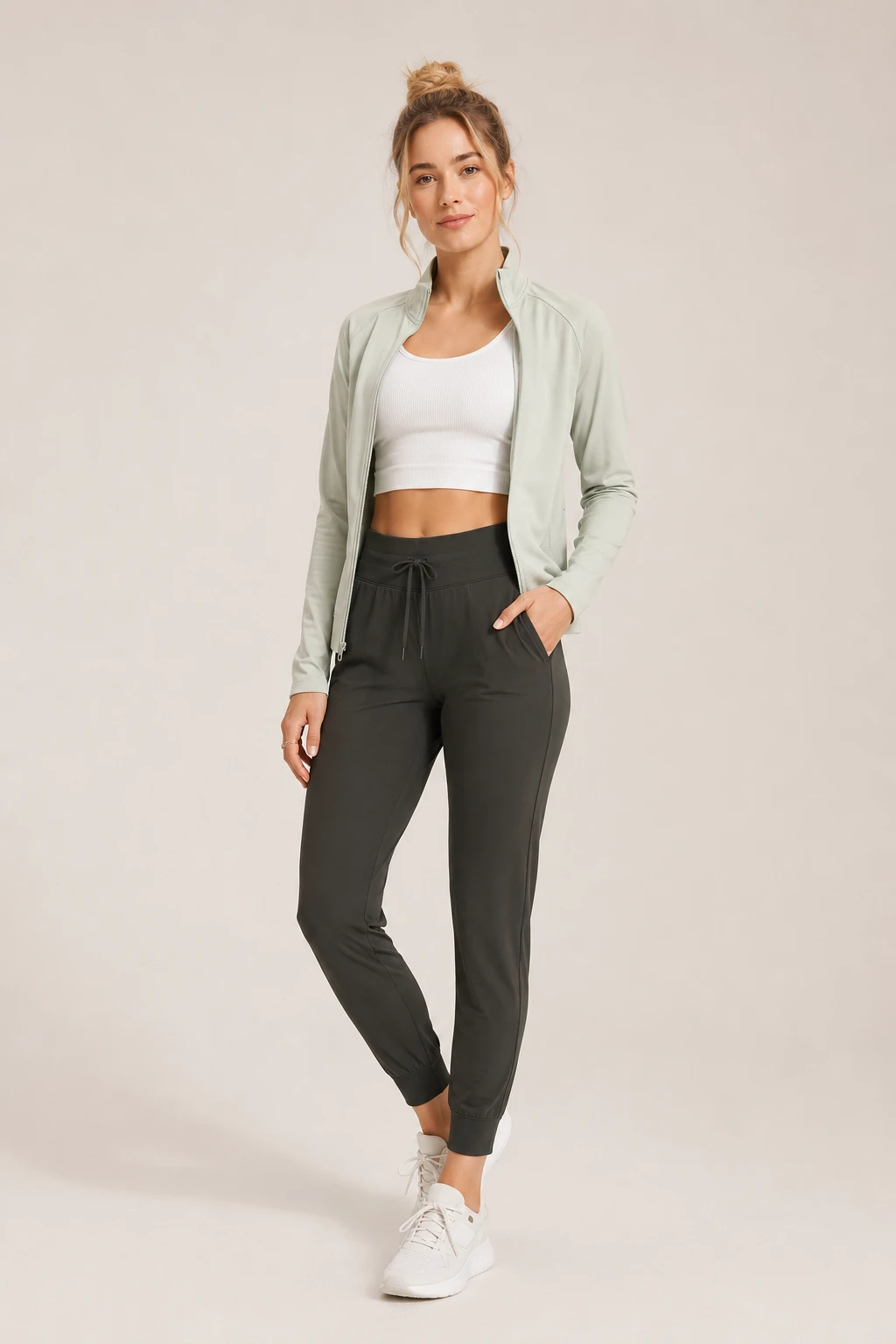
- Landmark: Face, eyes, shoulders, and waist are detected automatically
- Crop marker: Choose Eyes, Face, Shoulder, Waist, or a custom point
- Crop frame: Preview the cut line and retained garment area
- Export: Output original size, custom sizes, aspect presets, or ZIP
Eyes
Workflow Controls
Preview the headless crop controls before applying the batch.
Move through landmark detection, marker selection, output-frame review, and export presets with the same visual controls used in the workbench.
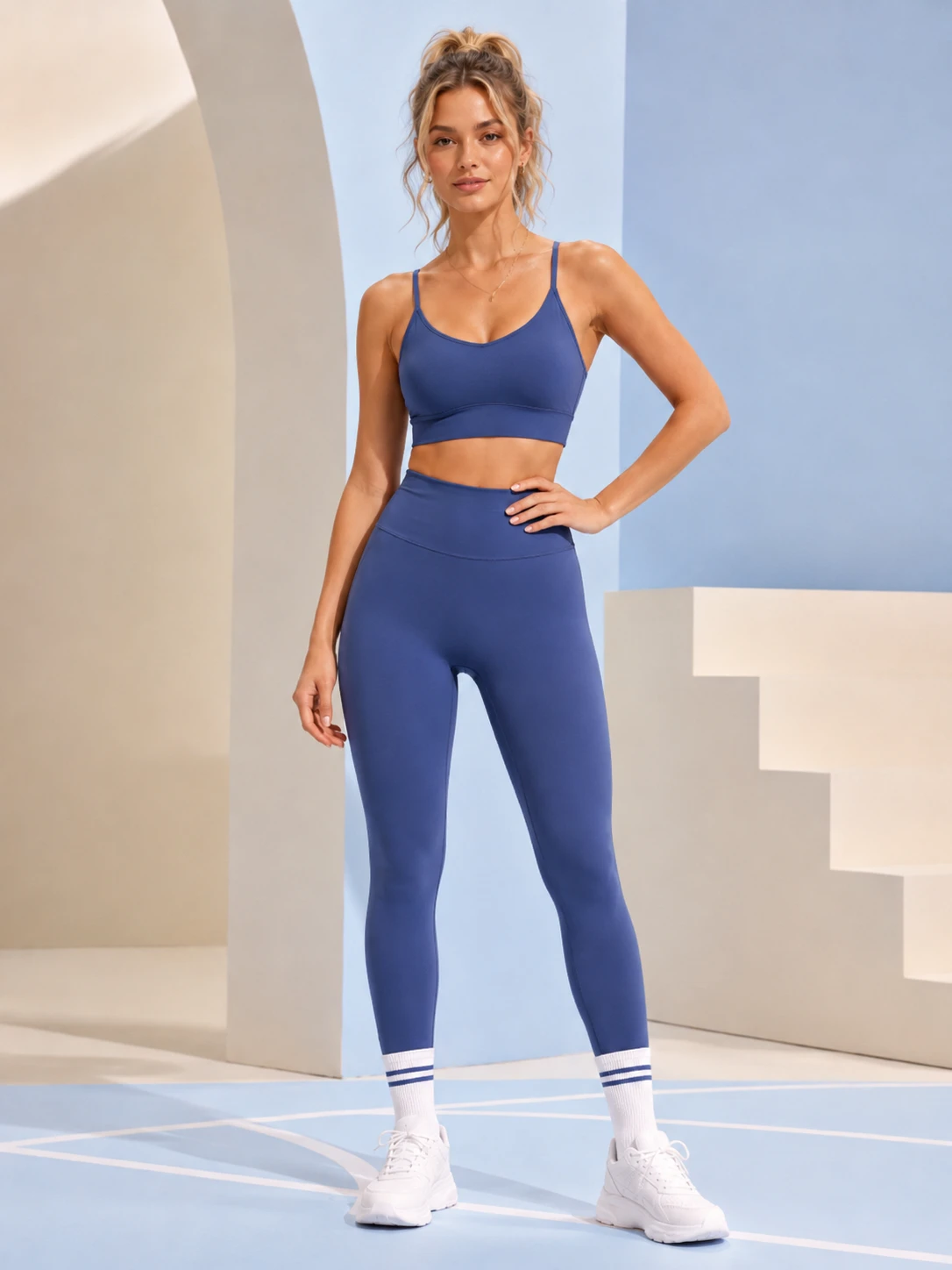
AI Landmarks
Face/Eyes/Shoulder...detecting
How to use Headless Face Crop
- 1
Upload model photos
Add model shots to one queue and let AI detect face, shoulder, waist, and other crop references.
- 2
Choose the crop marker
Pick Face, Shoulder, Waist, or a custom point to define where the retained frame starts.
- 3
Preview the crop area
Check the output frame, horizontal margins, and retained garment area before applying the rule.
- 4
Apply and export
Select original, custom, or aspect-ratio outputs, then download the processed batch.
Built for the marketplaces you ship to








Frequently Asked Questions
Headless Crop is built for fashion, apparel, wholesale, and catalog teams that need consistent model-photo crops while reducing identifiable face content in public product imagery.
The tool supports face, eyes, mouth, nose, between-landmark markers, shoulder, waist, and custom output selections.
Yes. Select a marker first, then review the crop line, retained garment area, and output frame before applying the same setup to the batch.
Yes. Use custom sizes, aspect-ratio presets, or original-size output depending on the batch requirements.
Yes. Confirm the marker and output frame on a preview image, then apply that crop setup across the queued model photos for consistent catalog framing.
No. It does not blur or retouch faces in place. It creates a cropped output frame based on the selected landmark so the exported image starts below the chosen crop line.
No. It works best for model and apparel imagery, but any batch where face or body landmarks define the crop can use it.
Discover more Crop.Pro tools
Prepare ecommerce images faster with focused tools built for the same batch workflow.
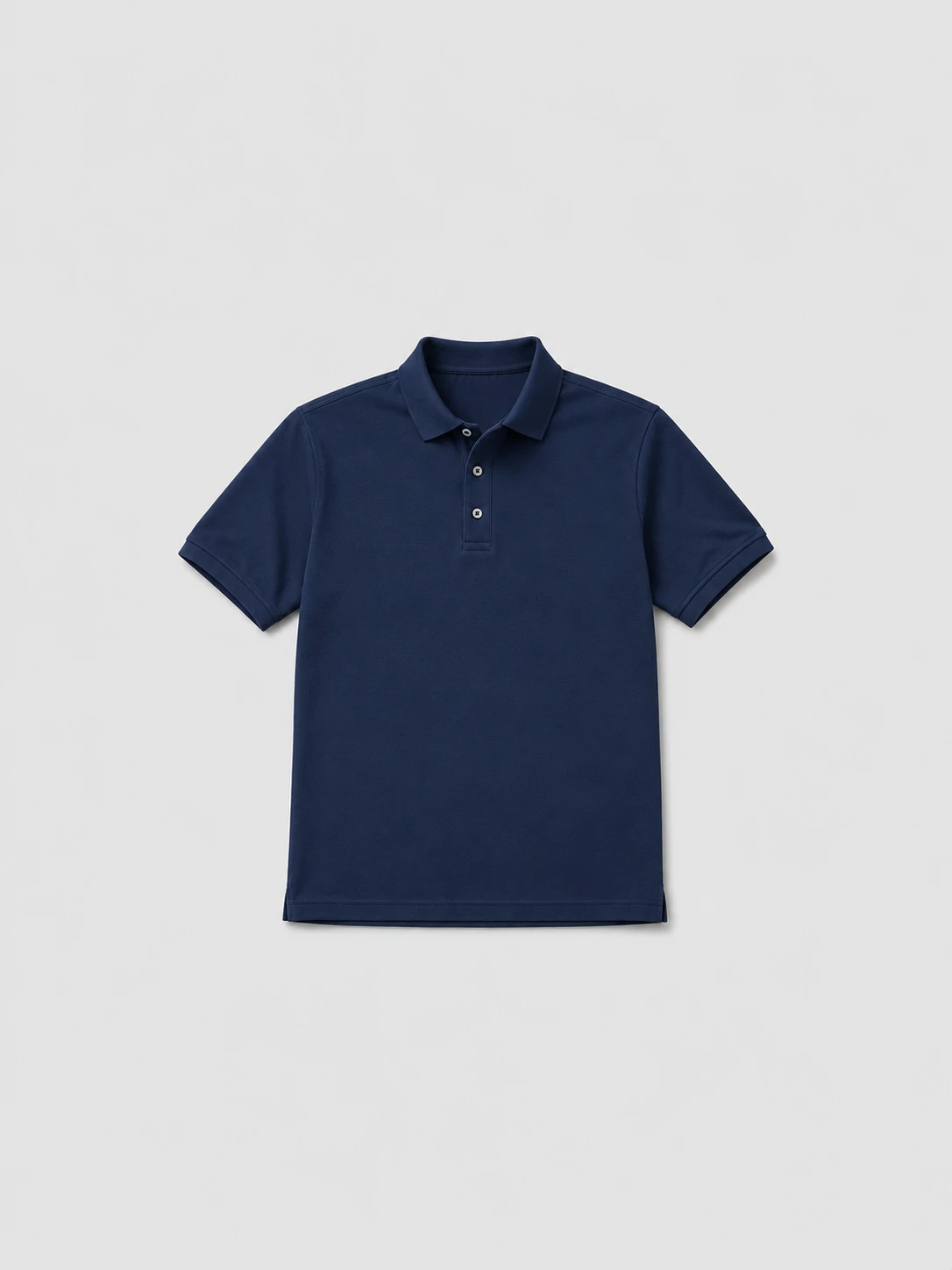 134px 160px 264px 264px
 Batch Crop
Detect product subjects, align crop margins, and export consistent marketplace-ready image batches.
Learn more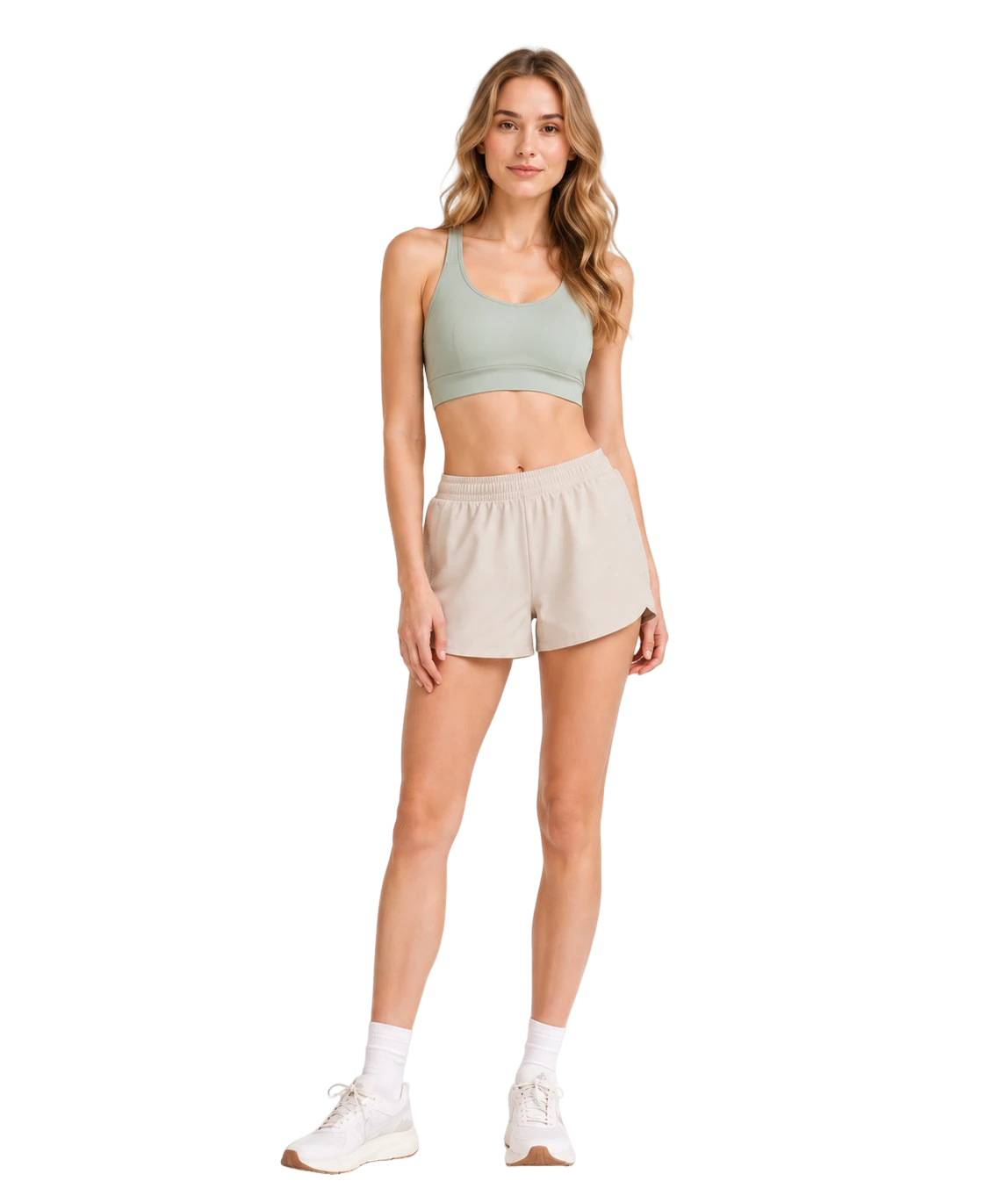
Cutout & Resize
Remove backgrounds, set a clean canvas, and export consistent ecommerce-ready product visuals.
Learn more